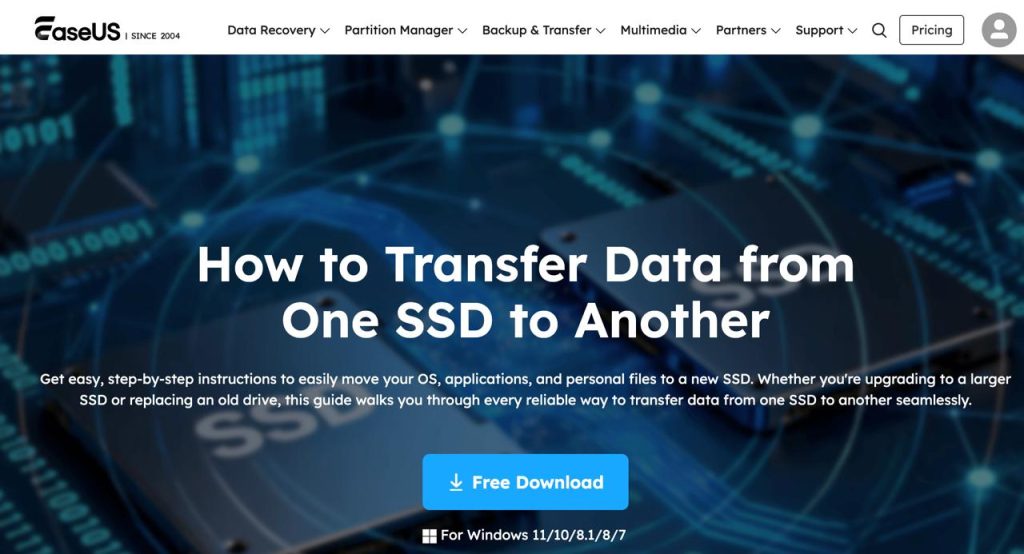
There are two moments when almost everyone discovers they should have taken data protection seriously: the morning a drive stops spinning, and the afternoon a new laptop arrives and an entire working life on the old one has to somehow get across. Both are urgent, unglamorous, and exactly what the EaseUS Backup & Transfer family was built for. It’s two products working the same territory from opposite ends — EaseUS Todo Backup, an imaging and recovery tool shipping since 2009, and EaseUS Todo PCTrans, a migration utility that moves programs, user accounts and settings between Windows machines without reinstalling anything. EaseUS was founded in 2004, claims over 530 million users across 190+ countries, and reports more than 20 million people on its backup software alone with roughly 2.4 million on the transfer side. Both tools have genuinely usable free editions, and both paid tiers start under $50.
For freelancers with one irreplaceable work machine, small business owners refreshing aging PCs, creators sitting on terabytes of project files, and IT generalists holding Windows 10 boxes that stopped receiving security patches in October 2025, the timing has rarely been more pressing. This 2026 review walks through what the Backup & Transfer line actually does, how the two engines differ, what the free editions really include, the full pricing structure including the subscription trap, head-to-head comparisons against Macrium, Acronis and Laplink, the real limitations users complain about, and which edition fits which buyer.
EaseUS Backup & Transfer Review 2026: The Practical, Affordable Way to Protect One PC and Move Everything to the Next One
Overview and Background
EaseUS is a Chengdu-based software company founded in 2004 that built its reputation on Windows disk utilities. Backup & Transfer is one of five product families it maintains, alongside data recovery, partition management, mobile tools and a growing multimedia and AI line. Where most vendors pick a lane, EaseUS covers the whole disk lifecycle: recover what was lost, reorganize what remains, image what matters, and move it all to the next machine.
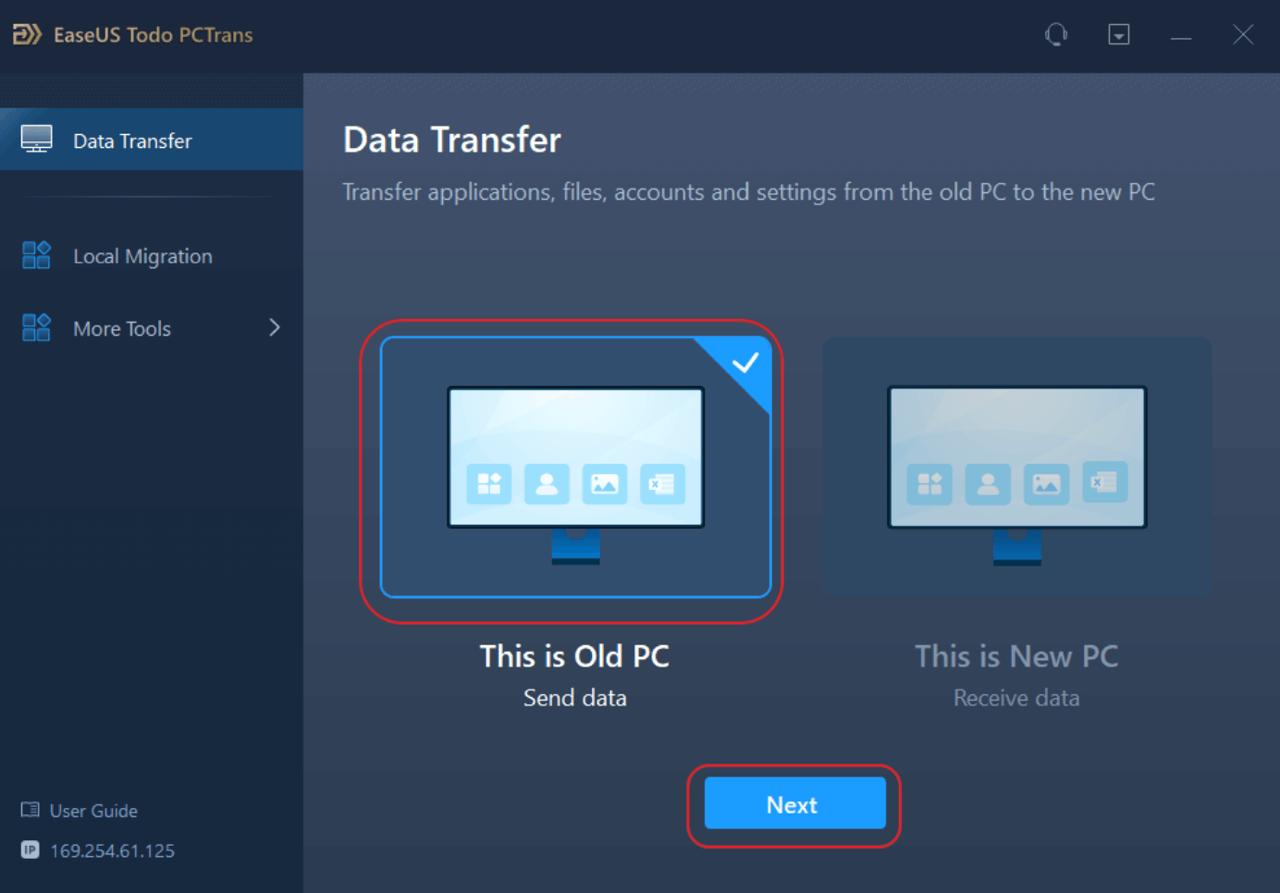
The two products answer questions that sound alike but aren’t. Todo Backup answers “how do I get this computer back if something goes wrong?” — imaging files, partitions, whole disks or the OS itself to local, NAS, network, FTP or cloud destinations, and restoring them including to bare metal via bootable WinPE media. Todo PCTrans answers “how do I get everything onto the new computer without spending a weekend reinstalling?” — moving installed applications, user accounts, profiles, passwords and files over LAN, Wi-Fi, USB cable or an intermediate image file, and pulling data off a drive from a machine that no longer boots.
The core insight behind both is the one that has driven EaseUS for two decades: most people who need disk-level tools are not disk-level experts. The interfaces are wizard-driven, the language is plain, and destructive operations are wrapped in confirmations. That accessibility is the product’s main asset, and the reason the software recurs in “best free backup software” and “Windows Easy Transfer alternative” roundups from CNET, TechRadar, Softpedia and Softonic. Current builds carry 2026 updates — NAS backup support and improved cloning reliability on the backup side, wired PC-to-PC transfer on the migration side.
Why EaseUS Backup & Transfer Stands Out in 2026
Free editions that are actually useful, not crippled demos: This is the clearest differentiator. Todo Backup Free performs full file, folder, partition, disk and system backups, supports full, incremental and differential modes, schedules tasks, encrypts images with a password, and creates WinPE bootable rescue media. Competitors have been retiring their free tiers — Macrium discontinued Reflect Free, and Acronis never had one. Todo PCTrans Free is tighter at 2GB of data and five programs, but still enough to move a working set of applications.
Application migration without reinstallation: Copying files between PCs is trivial. Moving an installed program — with its registry entries, license state and configuration intact — is not. PCTrans handles Microsoft Office, Adobe applications, browsers, Zoom, AutoCAD, Dropbox, QuickBooks and games, preserving settings so the app opens on the new machine looking the way it did on the old one.
User account and profile transfer, not just data: PCTrans Pro migrates entire user accounts — profiles, passwords, personalization, desktop layout, browser state — so the new PC feels like a continuation rather than a fresh start. It’s the reason the tool keeps appearing as the leading Windows Easy Transfer replacement since Microsoft discontinued that utility after Windows 8.1.
Cloning and backup living in the same application: Todo Backup Home combines image-based backup with disk, partition and system cloning — different jobs solved on different days, since imaging is for disaster recovery and cloning is for hardware upgrades. Migrating an OS from a failing HDD to a new SSD is a single guided workflow producing a bootable result, resizing in either direction. Buying two tools for both jobs is the norm elsewhere; here it’s one purchase.
Universal Restore for dissimilar hardware: Restoring a system image onto the same machine is straightforward. Restoring it onto a different machine, with different chipsets and storage controllers, is where most consumer imaging tools return an unbootable result. Universal Restore injects the drivers needed to boot on new hardware and supports physical-to-virtual conversion — the feature that makes “if this laptop dies I need to be working tomorrow” an actual plan.
Key Features and Technology
The two products overlap slightly — both can create a full copy of a computer — but their engines and intended workflows are distinct. Here is how the capabilities break down in practice.
Todo Backup — The Imaging and Recovery Engine
Todo Backup works at four levels of granularity: files and folders (over 1,000 file types), partitions, whole disks, and the OS with its boot partitions. Each supports full, differential and incremental modes, so after the first image, later runs capture only what changed. Intelligent Backup images only used sectors rather than every block, shrinking image size on partially filled drives, and Hot Backup runs while the system is live.
Destinations are unusually flexible: internal and external drives, RAID arrays, USB media, NAS, network shares, FTP servers, VMware virtual disks, DVDs and EaseUS cloud storage. Offsite Copy mirrors a completed backup to an FTP target automatically, giving a second location without a second manual step, and email notifications report per-task success or failure. Images mount as a drive to extract individual files without a full restore.
Cloning, System Migration and Disaster Recovery
Cloning is a paid Todo Backup Home feature covering disk, partition and system clone. System Clone copies the OS along with every boot-related partition — the part people most often get wrong moving Windows to an SSD manually, since copying C: alone leaves a drive that won’t start. It resizes between drive sizes in both directions and runs against a live Windows installation. The WinPE bootable disk is the critical safety net: when Windows won’t start at all, you boot the rescue environment and restore from there. Home also adds App Data backup, capturing Outlook mailboxes, Chrome bookmarks, passwords and extensions, and game saves — the things stored inside applications rather than in Documents.
Todo PCTrans — The Migration Engine
PCTrans offers several paths. PC to PC runs on both machines over LAN, Wi-Fi or a USB transfer cable, the wired mode being substantially faster. Image transfer writes everything into one migration file on an external drive — right when the two computers are never online together. App migration moves installed programs between local drives to relieve a full C: drive. Data rescue reads a drive pulled from a dead machine and transfers its contents, programs and accounts to a working one. Pro adds a product key scanner that exports Windows, Office and Adobe licence keys before you wipe the source machine — a small feature that has saved many people an expensive surprise.
Pricing, Plans, and Package Structure
EaseUS pricing is aggressive at the entry point and genuinely confusing above it. The same product sells as a monthly plan, an annual subscription and a lifetime licence, discounts run near-continuously so listed prices are rarely what you pay, and the promotional price on one page often differs from the figure in that page’s own FAQ. Every figure below is an approximate range reflecting pricing observed at the time of writing — verify the live price and, more importantly, the billing term at checkout before confirming.
| Edition | Approx. Price | What You Get | Best For |
|---|---|---|---|
| Todo Backup Free | Free | File, system, disk and partition backup; full/incremental/differential; scheduling; encryption; WinPE rescue media; 30-day 250GB cloud trial | Anyone with no backup at all — start here today |
| Todo Backup Home | ~$40 (list $39.95) | Everything free, plus disk/partition/system clone, Security Zone, App Data backup, Universal Restore, image reserve strategy, transfer system to a different PC | Home users and freelancers who want cloning and real disaster recovery |
| Todo Backup Enterprise | from ~$49 | Windows Server support, SQL/Exchange backup and restore, centralized management, prime technical support | Small businesses running a server or managing several machines |
| Todo PCTrans Free | Free | 2GB of data and 5 programs transferred; user accounts and settings; 2GB of drive cleanup; app uninstall and repair | A single small migration — moving a handful of apps to a new laptop |
| Todo PCTrans Pro | ~$40–70 depending on term | Unlimited data and programs, account migration, product key scanner, dead-PC data rescue, unlimited cleanup; 1 license covers 2 PCs | Most people replacing a main computer — the sensible paid tier |
| Todo PCTrans Server | ~$299 | Everything in Pro plus Windows Server 2003–2022 support and domain account transfer; 1 license for 2 servers | Businesses migrating server workloads |
| Todo PCTrans Technician | ~$399 | Unlimited PCs and servers, batch installation, unlimited use within one company, permission to provide paid service to clients | IT consultants, MSPs and repair shops doing migrations for others |
| 8-App Bundle | ~$149–199 lifetime | Eight EaseUS products with lifetime upgrades — typically spanning backup, transfer, partitioning, cloning and recovery | Power users and technicians who want the whole toolbox once |
How EaseUS Backup & Transfer Compares to Alternatives
| Solution | Approx. Cost | Strengths | Trade-offs |
|---|---|---|---|
| EaseUS Backup & Transfer | Free; ~$40–70 per paid product | Genuinely usable free tiers, easiest interface in the category, backup and app-level PC migration from one vendor | Windows only; confusing pricing; widespread auto-renewal and refund complaints |
| Macrium Reflect | ~$50–65+ per device | Widely regarded as the most reliable Windows imaging engine; strong verification and boot recovery; excellent documentation | Free edition discontinued; steeper learning curve; no application-level PC-to-PC migration |
| Acronis True Image | ~$50–100+/year | Backup bundled with anti-malware and ransomware protection; polished cloud integration; mature multi-device management | Subscription-first with no free tier; users frequently report a noticeable system performance overhead |
| Laplink PCmover | ~$45–70 one-time | The long-established specialist in PC-to-PC migration; Microsoft-recommended heritage; strong at whole-profile moves | Migration only — no backup or imaging; no meaningful free version to test before buying |
| Windows built-in + manual | Free | No cost, no third-party software, File History and system image tools already installed | Cannot migrate installed applications at all; legacy imaging tools are minimally maintained; every app reinstalled by hand |
vs. Macrium Reflect: Macrium is for people who care most about image integrity — its verification, boot recovery and rescue environment rate at the top of the category, and G2 reviewers score it above Acronis on ease of setup. What it won’t do is move applications to a different computer. EaseUS trades a little imaging rigor for a gentler interface, a real free tier, and a migration capability Macrium lacks. Imaging one machine you’re keeping? Macrium. Want one vendor covering both protection and replacement? EaseUS.
vs. Acronis True Image: Acronis is the premium option and behaves like one — backup fused with anti-malware and ransomware defense, mature cloud storage, multi-device management. It is also subscription-only, has no free edition to evaluate, and carries a long-running reputation for slowing the machines it runs on; customers on forums like BleepingComputer regularly describe leaving to escape the renewals and the performance drag. EaseUS costs a fraction as much, tests free indefinitely and stays lighter — but there’s no integrated security layer, and its cloud offering outclasses a 30-day trial.
vs. Laplink PCmover: The closest head-to-head on the transfer side, and PCmover has genuine pedigree as the reference migration tool. The practical difference is evaluation and scope: it has no free download for its full editions, so you commit before knowing whether it handles your specific applications, and it does no backup at all. PCTrans lets you run a 2GB, five-program transfer for nothing and confirm the workflow on your two machines before spending anything. For a single planned migration where budget isn’t the constraint, PCmover is defensible; for most buyers, testing first matters more.
Pros and Cons
What Users Love
Approachable for non-experts: The most consistent praise in editorial and user reviews alike. Disk-level operations are intimidating, and EaseUS wraps them in wizards that make irreversible mistakes hard. People who would never open Disk Management successfully clone a drive with it.
The free tier removes every excuse: Todo Backup Free covers system imaging, scheduling, incremental backups, encryption and bootable rescue media at no cost. For the enormous number of people running with no backup strategy at all, this is a complete solution that costs nothing.
Application migration genuinely works: Transferred programs launch and run on the target machine with settings and registry state preserved, including Office, Adobe applications and browsers. This is the capability that saves days, and it is the reason PCTrans keeps appearing in migration roundups.
Broad Windows coverage including legacy systems: PCTrans supports Windows XP through 11 and Server 2003 through 2022 — reach that matters if you’re moving off genuinely old hardware, which is exactly where many Windows 10 holdouts are.
Limitations Worth Knowing
Auto-renewal billing is the dominant complaint: Across Trustpilot, PissedConsumer and similar sites, reviewer after reviewer reports enrolment in a recurring subscription they did not knowingly choose, discovered months later, with a refund refused. Renewal pricing also reportedly rises sharply in year two. This is the single biggest reason to buy a lifetime licence and check your account settings the moment the purchase completes.
Refund handling is inconsistent, and the ratings conflict: There is a 30-day money-back guarantee, free technical support on every edition including the free ones, and many users naming individual agents who resolved issues or refunded quickly — alongside a significant volume of reports of requests denied by pointing at the terms, particularly on renewals. On PissedConsumer, EaseUS sits near a 1.9 rating with roughly 81% of reviews unfavorable, a very different picture from its aggregate Trustpilot score. Trustpilot has also posted a notice on the EaseUS profile indicating the company may have solicited reviews in a way its guidelines don’t support, so weigh the substance of individual complaints more heavily than the headline star rating.
The free tiers stop short of the popular features: Disk, partition and system cloning are Home-tier only, which stings given cloning is exactly what many people download backup software to do. On the transfer side, 2GB and five programs proves the tool works and not much more, so any real migration needs Pro. A Pro licence covers two PCs and EaseUS states plainly that it cannot be moved to a third device — a new machine means a new purchase. Plan the licence count before starting a multi-PC refresh.
Migration is not always complete: As with every tool in this category, some applications don’t survive the move cleanly and need manual reinstallation. Deeply integrated software, anything with hardware-bound licensing, and apps needing driver-level components are the usual exceptions. Expect a short cleanup list, not a perfect clone of your working life.
Windows only, with upsell-heavy interfaces: There is no Mac or Linux version of either product. Both applications and the website also push hard toward paid upgrades — banners, timers and prompts are constant. Tolerable, but not quiet software.
Who Should Use EaseUS Backup & Transfer
Freelancers and solo professionals with one critical machine: If your income depends on one laptop, its failure is a business emergency. Start with Todo Backup Free today, get a scheduled system image running to an external drive, and move to Todo Backup Home for Universal Restore so a dead machine can be resurrected on borrowed hardware within hours.
Anyone replacing a computer right now: The clearest use case in the lineup. Buy Todo PCTrans Pro on a lifetime licence, run the product key scanner on the old machine first, and move applications, accounts and files across in an afternoon rather than a weekend. One licence covers both PCs — exactly the shape of the job.
Small business owners still on Windows 10: Security patches stopped in October 2025 and the consumer ESU bridge expires in October 2026, so the runway is nearly gone. Todo Backup Home plus PCTrans Pro gives you a verified image of each old machine before you touch it and a repeatable path onto Windows 11 hardware. If servers are in scope, price the Server edition instead.
Creators with large media libraries, and anyone upgrading to an SSD: Project files and asset libraries are enormous and irreplaceable; incremental backup with sector-level imaging keeps storage cost manageable, and Offsite Copy to FTP or NAS provides the second location that makes a strategy real. The same tier also covers the most common reason people search this category — moving Windows to a new SSD, where System Clone handles the boot partitions and drive resizing that manual attempts get wrong. Todo Backup Home either way.
IT consultants, repair shops and MSPs: If you migrate machines for others commercially, PCTrans Technician is the only licence that permits it — unlimited PCs and servers, batch installation, explicit permission to serve clients. Consumer licences used for client work violate the terms, so budget accordingly.
Who should look elsewhere: Mac and Linux users, since neither product supports them. Enterprises needing centralized policy management, deduplication and compliance reporting across hundreds of endpoints — that’s a Veeam or Acronis Cyber Protect conversation. And anyone unwilling to tolerate any risk of a billing surprise may prefer a vendor with a simpler one-time purchase model, even at a higher price.
Getting Started: Step by Step
- Decide which problem you’re solving first. Keeping the machine you’re on? Start with Todo Backup. New computer arriving? Start with Todo PCTrans.
- Download the free edition from the official EaseUS site. Use easeus.com directly rather than a third-party download portal, where bundled-installer complaints usually originate. Install, and don’t enter payment details yet.
- Run one complete job on the free tier before spending anything. With Todo Backup, create a full system image to an external drive and let it finish. With PCTrans, transfer one small program. You’re verifying the tool works on your specific hardware and applications — the test PCmover and Acronis won’t let you run.
- Create WinPE bootable rescue media immediately. The step everyone skips and later regrets — a backup image you cannot boot to restore is not a backup. Build the USB rescue disk while everything works, label it, keep it with the backup drive.
- Scan and export your product keys before migrating. Run the PCTrans key scanner on the old machine and save the Windows, Office and Adobe keys somewhere outside both computers — before you wipe or recycle anything.
- Upgrade deliberately, choosing the lifetime term. If the free run went well, buy the tier you actually need — selecting lifetime or perpetual rather than monthly or annual. Read the checkout page line by line and screenshot the confirmation.
- Check auto-renewal, then schedule and test. Log into your EaseUS account, confirm whether recurring billing is enabled and turn it off if unintended. Then set your schedule — weekly full with daily incremental suits most people — and once a quarter restore a single file to prove the chain still works.
Tips for Getting Maximum Value
Never pay the crossed-out list price — promotions run almost continuously and there is nearly always an active discount code, though the countdown timers are decoration rather than real deadlines. Always choose lifetime over monthly or annual: it is often only marginally more than a single year and removes the auto-renewal exposure behind most complaints against the company. Before buying two or three products separately, price the 8-app bundle, which frequently costs less than the individual lifetime licences it contains; students and teachers should check the education discount page. Technically, the value comes from configuring things once: enable incremental or differential backup so scheduled runs stay fast, set an image reserve strategy so old images are pruned instead of filling the drive, switch on email notifications so a silently failing task isn’t missed for months, and use Offsite Copy or a NAS rather than one external drive sitting beside the computer it protects. For migrations, use a wired link rather than Wi-Fi, close every application on both machines first, and budget an hour for the programs needing manual reinstallation.
Future Outlook and Final Assessment
The market tailwind here is unusually specific. Windows 10 reached end of support on 14 October 2025, and by mid-2026 roughly half of businesses were still running it. The consumer Extended Security Updates bridge expires on 13 October 2026, and commercial ESU pricing doubles annually — $61 per device in year one, a cumulative $427 over three years. That is a deliberate push, and it means a very large population of machines must be migrated within months, not years. Every one of those migrations needs a verified backup before the work starts and a way to move applications and profiles onto the new hardware afterwards — precisely this family’s job.
EaseUS is also visibly investing: the 2026 releases added NAS backup support and fixed cloning and boot issues, while PCTrans gained wired PC-to-PC transfer. The company is expanding into AI-adjacent tools — a voice changer, vocal remover and several standalone AI properties — which suggests resources, though it fairly raises the question of how much attention the core disk utilities get relative to the newer bets. Two decades of continuous shipping here suggests the answer is “enough.”
The honest caveats stand and deserve restating plainly rather than burying. The software is competent and easy to use; the commercial practices around it are the weak point. Auto-renewing subscriptions buyers did not knowingly select, refunds declined by pointing at the terms, renewal prices rising in year two, self-contradicting promotional pricing, and a Trustpilot notice about review solicitation — these are the dominant theme in negative feedback, not fringe reports. None of it means the tools won’t do the job. It means buy carefully, choose lifetime licensing, and verify your billing settings the moment the transaction clears.
Conclusion
EaseUS Backup & Transfer is not the most sophisticated imaging engine on the market and isn’t trying to be. What it is, reliably, is the most approachable way for a non-specialist to solve two otherwise difficult problems: making sure a computer can be brought back after a disaster, and getting a working software environment onto a new machine without rebuilding it by hand. The free editions are substantial enough to be a complete answer for some users and a risk-free evaluation for everyone else, and the feature set — cloning, Universal Restore, Security Zone, application migration, dead-PC rescue, product key export — covers the disasters and transitions a home or small-business user actually faces, at prices well below the premium alternatives.
It suits freelancers protecting a single critical machine, home users upgrading to an SSD, anyone replacing a computer, and small businesses working through a Windows 11 refresh against a closing ESU deadline. It is not for Mac or Linux users, enterprises needing centralized fleet management, or buyers who want a spotless billing reputation. Start with the free version, prove it works on your hardware, buy a lifetime licence if it does, and check your renewal settings — do that and you get a genuinely capable toolkit at a fair price. At AI Solutes we review tools the way we’d want them reviewed for us: the strengths, the catches, and the specific decision that saves you money, because the point is always to make everything easy.
Protect the PC you have and move painlessly to the next one — start free with EaseUS today.
Explore more honest reviews, tutorials and tool comparisons to find the right tech for the way you work and live — at AI Solutes, where we make everything easy.
👉 Open Free Account: https://ai-solutes.com/easeus
👉 Our Website: https://ai-solutes.com/
👉 Our YouTube Channel: youtube.com/@ai-solutes
👉 Our Facebook Fanpage: Facebook
👉 Our X (Twitter): @AISolutes