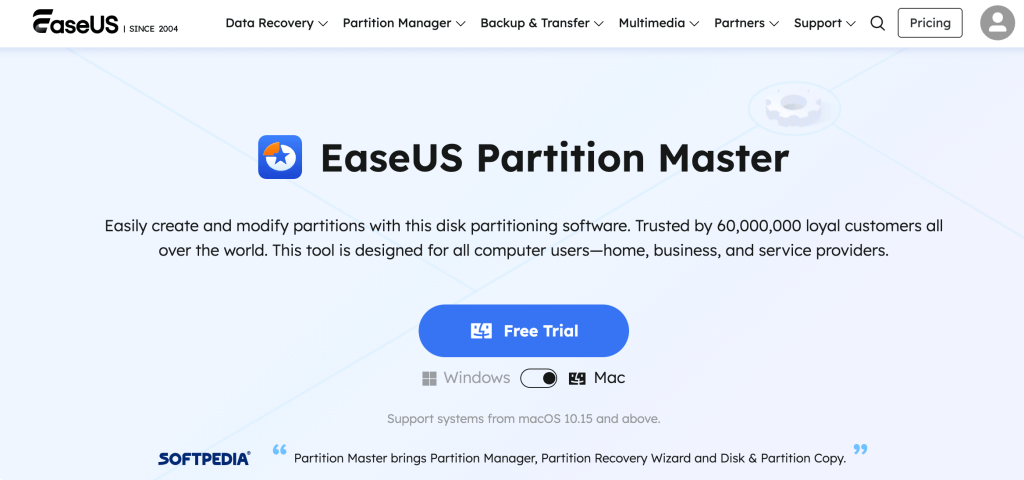
Every Windows user eventually hits the same wall: the C: drive is full, a new SSD needs a bigger system partition, or Windows Disk Management flatly refuses to resize a volume because the “free space” isn’t sitting in the right spot. That’s the exact gap EaseUS Partition Master was built to close. Launched back in 2004 and now used by more than 60 million people worldwide, EaseUS Partition Master has grown from a simple resize-and-move utility into a full disk management suite that can create, resize, merge, clone, convert, and recover partitions — plus migrate an entire operating system to a new drive without a single reinstall. With a free edition that covers genuine basic needs, a Professional tier priced at roughly $39.95–$49.95 a year, and business editions built for IT teams managing dozens of machines, it has positioned itself as one of the most complete alternatives to the partition tools built into Windows itself.
For home users upgrading to a bigger SSD, IT admins standardizing a fleet of laptops, freelancers who can’t afford downtime, and anyone who has ever stared at a greyed-out “Extend Volume” option in Windows, EaseUS Partition Master solves a real and recurring problem. This 2026 review walks through exactly what the Partition Manager does, how its free and paid tiers differ, real pricing, how it stacks up against MiniTool, AOMEI, and Windows’ native tools, and the honest limitations you should know about before you buy.
EaseUS Partition Master Review 2026: The Most Approachable Way to Manage Windows Disk Partitions
Overview and Background
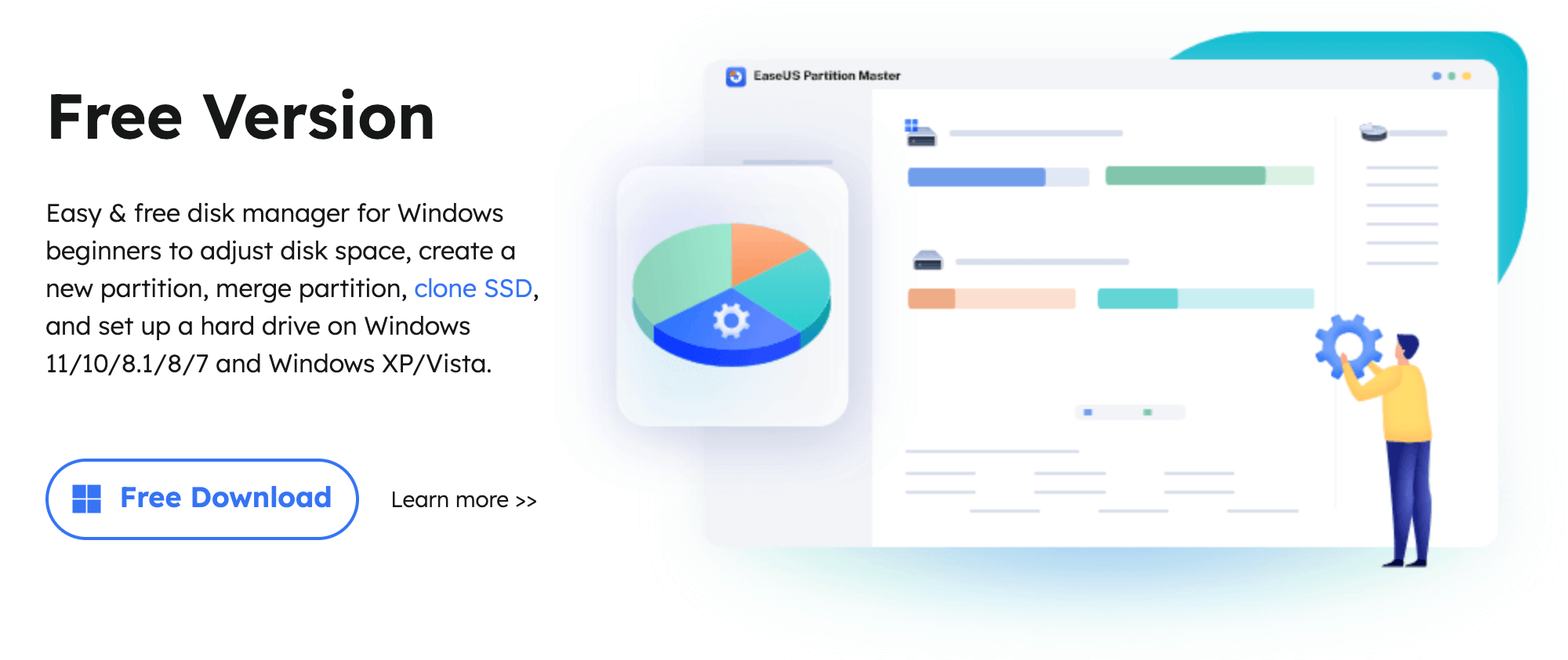
EaseUS Partition Master is a disk and partition management application for Windows, developed by EaseUS, a China-founded software company that has specialized in data backup, recovery, and disk utilities since the mid-2000s. At its core, the Partition Manager lets you reshape how a hard drive or SSD’s storage is divided — creating new partitions, resizing existing ones, merging or splitting volumes, converting between MBR and GPT (a requirement for some Windows 11 installs), and formatting drives across file systems including NTFS, FAT32, exFAT, ReFS, and even EXT2/3/4 for users who dual-boot Linux. It runs on every Windows version still in common use — 11, 10, 8.1, 8, and 7 — plus older releases back to Vista and XP for people still maintaining legacy hardware, and its Server editions extend the same toolset to Windows Server 2008 through 2019.
The company’s broader product line — Todo Backup, Data Recovery Wizard, and the newer Easemate AI assistant — feeds back into Partition Master in small but useful ways, like shared licensing accounts and cross-tool bundle discounts. That ecosystem context matters if you’re comparing total cost: someone who already needs backup software may find a bundled deal beats buying Partition Master as a standalone purchase.
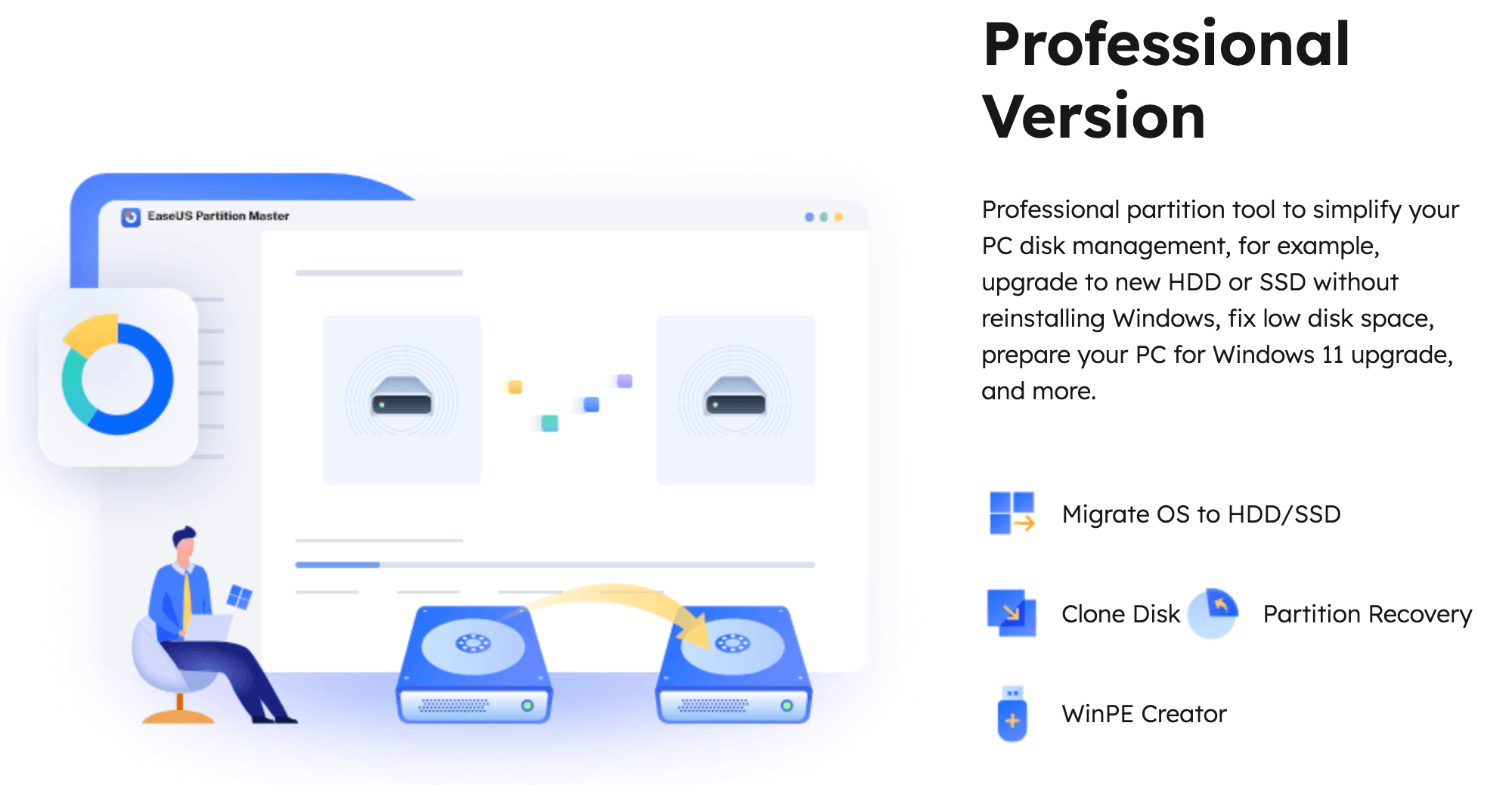
Where it earns its reputation, though, is in the operations Windows’ built-in Disk Management tool simply can’t do cleanly: cloning a full disk (including the boot partition) to a new drive, migrating an entire OS installation to an SSD without reinstalling Windows, recovering partitions that were accidentally deleted, and running 4K sector alignment to squeeze more real-world performance out of an SSD. The software is available in a genuinely usable free edition and several paid tiers, and it supports every currently maintained version of Windows plus legacy systems back to XP.
Why EaseUS Partition Master Stands Out in 2026
Beginner-friendly interface without losing power: the visual, drag-to-resize layout makes partition math intuitive for non-technical users, while the queue-and-execute-all workflow (batch multiple operations, then apply them together) gives power users the control they’d otherwise reach for a command-line tool like DiskPart to get.
Genuine OS migration, not just file copying: the clone and migrate features move a bootable Windows installation — including the boot loader — to a new SSD or larger drive, which is the single most requested reason people upgrade from the free edition.
Improved exFAT and cross-platform handling: recent versions treat exFAT partitions with the same operational depth traditionally reserved for NTFS, which matters for anyone juggling external drives between Windows, macOS, and Linux.
A bootable rescue path when Windows won’t start: paid editions can build a WinPE-based bootable USB, so you can still resize, recover, or repair partitions on a PC that won’t boot into Windows at all — something the built-in Windows tools can’t offer.
Disk health visibility baked in: S.M.A.R.T. monitoring, bad-sector checks, and drive temperature/operating-hours tracking are included, so you get an early warning before a failing drive takes your partitions with it.
Support that reviewers consistently call out: across G2, Capterra, and Trustpilot, live chat and email support respond quickly to activation and licensing issues, which matters more than it sounds like when you’re mid-way through resizing a system drive.
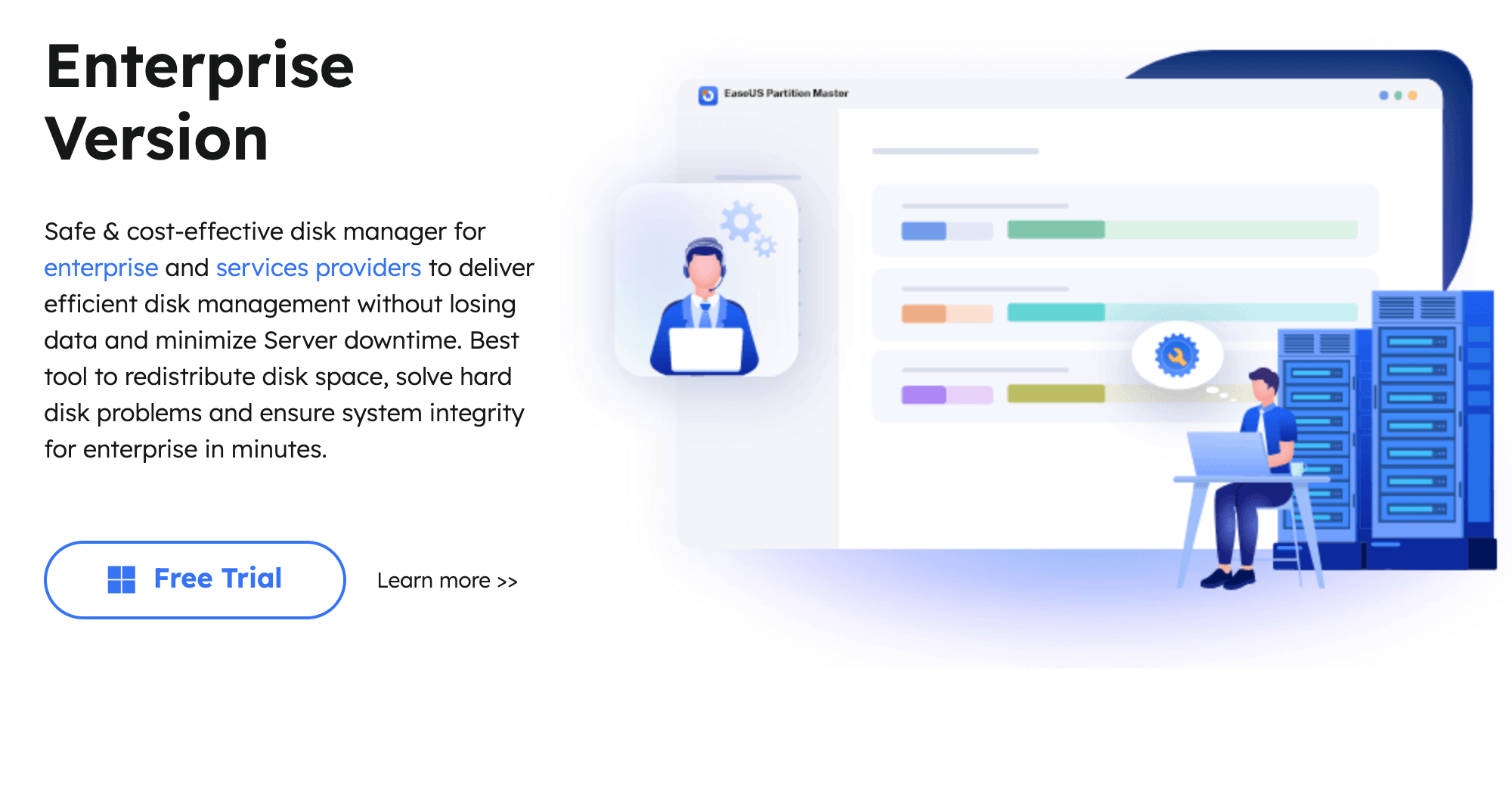
Business and technician tiers that scale: unlike many consumer partition tools, EaseUS offers Server, Unlimited, and Technician editions built for IT teams managing dozens or hundreds of machines, with commercial-use rights and multi-device licensing.
Key Features and Technology
The Partition Manager groups its capabilities into a handful of practical categories. Here’s what each one actually does in day-to-day use.
Core Partition Operations
Create, delete, resize, move, merge, split, format, wipe, hide, and explore partitions, all through a drag-and-drop disk map. Operations queue up and apply together, so you can plan a full disk reshuffle and execute it in one pass instead of rebooting between each change.
Cloning and OS Migration
Clone an entire disk — including the operating system, apps, and data — to a new HDD or SSD, or migrate just the OS to a smaller/faster drive. Both are commonly used for the classic “my laptop’s SSD is too small” or “my hard drive is dying” scenarios, without needing a fresh Windows install and driver reconfiguration afterward.
Conversion and Recovery Tools
Convert disks between MBR and GPT without wiping data — required for many Windows 11 upgrades on older systems — and convert between dynamic and basic disks. The Partition Recovery Wizard scans for lost or deleted partition tables after an accidental deletion or a bad conversion, which is a meaningful safety net for anyone nervous about disk-level changes.
Disk Health and Optimization
4K sector alignment for SSDs, bad-sector and surface checks, S.M.A.R.T.-based health readouts (temperature, power-on hours, reallocated sectors), and a defragmentation tool for HDDs round out the suite. A command-line interface is also available in paid editions for admins who want to script repetitive partition tasks across machines.
Pricing, Plans, and Package Structure
EaseUS Partition Master’s consumer tiers are sold as an annual subscription or a one-time lifetime license (which still includes free version upgrades), while business tiers are priced per year with lifetime-upgrade options at a premium. Pricing below is approximate — EaseUS runs frequent seasonal promotions (often 40–70% off), so treat these as reference points and confirm the live price at checkout.
| Plan | Approx. Price | Best For | Key Inclusions |
|---|---|---|---|
| Free | $0 | Basic home use | Resize, move, format, basic conversion |
| Professional (Annual) | ~$39.95–$49.95/yr | Home users upgrading a drive | Clone, OS migration, merge/split, 2 PCs |
| Professional (Lifetime) | ~$69.95–$99 | Users who’ll keep using it for years | All Pro features + free lifetime upgrades |
| Unlimited (Business) | ~$399/yr, ~$599 lifetime | Small businesses, multi-PC teams | Unlimited internal machines, RAID-5 repair |
| Technician | ~$699/yr (lifetime upgrades incl.) | MSPs and IT service providers | Use on unlimited client machines, WinPE builder |
How EaseUS Partition Master Compares to Alternatives
| Feature | EaseUS Partition Master | MiniTool Partition Wizard | AOMEI Partition Assistant | Windows Disk Management |
|---|---|---|---|---|
| Free tier scope | Basic resize/format only | Broader free feature set | Broader free feature set | Built-in, but very limited |
| OS migration to SSD | Paid tiers only | Paid tiers only | Paid tiers only | Not available |
| Bootable rescue media | Yes (paid) | Yes (paid) | Yes (paid) | Not available |
| Entry paid price | ~$39.95–$49.95/yr | Similar range | Often slightly lower | Free (built into Windows) |
| Interface/learning curve | Very beginner-friendly | Beginner-friendly | Beginner-friendly | Technical, unforgiving |
vs. MiniTool Partition Wizard: MiniTool’s free edition genuinely offers more (including some conversion and copy functions EaseUS reserves for paid tiers), making it the stronger pick if your budget is zero. EaseUS pulls ahead once you’re paying, thanks to a more polished interface, stronger disk-health monitoring, and support many reviewers rate as faster and more consistent.
vs. AOMEI Partition Assistant: AOMEI is frequently the better-value pick on pure price, especially with lifetime licensing options that undercut EaseUS. EaseUS counters with a more complete recovery toolkit — including partition recovery and RAID-5 repair on business tiers — for users who prioritize a safety net over saving a few dollars.
vs. Windows Disk Management: the built-in tool is free and fine for the simplest resize jobs, but it can’t merge non-adjacent free space, can’t clone a bootable drive, offers no recovery for deleted partitions, and gives no disk-health data. For anything beyond the basics, EaseUS Partition Master (or a comparable paid tool) is doing work Windows simply can’t.
Pros and Cons
What Users Love
Handles what Windows can’t: the most repeated praise across G2 and Capterra is that it does resize and merge operations Windows Disk Management refuses to perform.
No technical background needed: reviewers consistently highlight that first-time users, including non-technical ones, complete conversions and partition work without frustration.
Reliable cloning and migration: business users report it saving real hours during PC upgrade cycles and dev-machine migrations, compared to manual reimaging.
Responsive support: licensing and activation issues get resolved quickly via live chat, which repeatedly comes up as a differentiator versus other partition tools.
Limitations Worth Knowing
Free edition is thinner than rivals: merge, split, clone, and migration are all locked behind a paid tier, while some competitors offer these for free.
Subscription-first pricing: Professional is sold primarily as an annual plan; the better-value lifetime license isn’t always the default option shown at checkout, so it’s easy to overpay without comparing.
Some tools require an internet connection: a handful of paid features check online before running, which is inconvenient if you’re troubleshooting an offline or newly-reformatted machine.
No data recovery from already-lost files: Partition Recovery restores partition structures, not deleted individual files — for that, you need EaseUS’s separate Data Recovery Wizard product, a distinction some users find confusing given the marketing.
Who Should Use EaseUS Partition Master
Home users upgrading to a new SSD get the clearest win here — clone-and-migrate turns a multi-hour reinstall project into a guided, one-pass operation. The Professional Lifetime license is the natural fit.
Freelancers and remote professionals who can’t afford a dead workday from a botched manual partition edit will appreciate the guardrails and recovery options. Professional (annual, if you only need it occasionally) covers this well.
Small IT teams and MSPs managing more than a handful of machines should look straight at Unlimited or Technician — the per-seat math on individual Professional licenses stops making sense past three or four devices.
Casual users with a single, simple resize need should try the free edition first — if it covers the job, there’s no reason to pay, and you can always upgrade later if a merge or migration need comes up.
Getting Started: Step by Step
- Back up important data first. Before any partition-level change, copy critical files to an external drive or cloud storage.
- Download and install EaseUS Partition Master from the official site and launch it — the free edition installs the same base app you’d use for a paid license.
- Review your disk map on the main dashboard, where every drive and partition is shown visually with its used/free space.
- Select the operation you need — resize, merge, clone, migrate OS, or convert — and follow the guided wizard for that task.
- Queue additional changes if you have more than one operation to run, so they execute together in a single pass.
- Click “Apply” to execute — for system-drive operations, the software will typically require a restart to complete the change outside Windows.
- Verify the result once Windows restarts, confirming partition sizes and that the system still boots normally before deleting any backups.
Tips for Getting Maximum Value
Start with the free edition to confirm the interface and workflow suit you before paying anything — then, when you do need a paid tier, default to the Professional Lifetime license over the annual subscription unless you’re certain you’ll only need the tool once. Watch for EaseUS’s seasonal sales (Black Friday, back-to-school, and anniversary promotions regularly cut 40–70% off), and apply a current coupon code before checkout rather than assuming the listed price is final. If you’re licensing more than two or three machines, run the math on Unlimited before buying multiple individual Professional licenses — it crosses over in value faster than it looks. And regardless of which tier you’re on, always keep an independent backup of anything irreplaceable before a system-drive operation; the software is reliable, but no partition tool eliminates the value of a real backup. Finally, avoid running major resize or clone jobs on a laptop that’s about to run low on battery, and close other disk-intensive applications first — interrupted operations are the single most common source of the rare data-loss reports you’ll find in user reviews.
Future Outlook and Final Assessment
As SSD prices keep falling and more households and small offices juggle multiple drives per machine, demand for approachable partition tools isn’t going away — if anything, Windows 11’s stricter GPT and TPM requirements have made conversion and migration tools more relevant, not less. EaseUS has kept pace by deepening exFAT support, refining its AI-assisted disk optimization suggestions, and maintaining one of the more responsive support teams in the category. The honest caveats remain real, though: the free tier is thinner than some rivals, the default checkout path nudges toward the pricier annual plan, and a handful of user reports describe data loss when operations were interrupted — a risk inherent to any partition tool, but worth taking seriously.
Conclusion
EaseUS Partition Master earns its long-running popularity honestly: it takes a genuinely fiddly, error-prone corner of Windows administration and makes it approachable, without stripping out the depth that IT professionals need. The free edition is a fair way to test the waters, but most people upgrading a drive, cloning a system, or managing more than one machine will get real value from a paid tier — just compare the lifetime and annual pricing carefully, factor in whether you’re licensing one PC or a whole fleet, and grab an active discount code before you check out. Whether you’re a home user finally fixing a cramped C: drive, a freelancer who can’t afford a lost workday, or an IT team standardizing a fleet of laptops, it’s a tool built around one simple idea: make everything easy. If you’re weighing this against other disk utilities or backup tools in your stack, that’s exactly the kind of side-by-side comparison AI Solutes exists to help with.
Ready to fix your disk space for good?
Explore more honest reviews, tutorials and tool comparisons to find the right tech for the way you work and live — at AI Solutes, where we make everything easy.
👉 Start Your Free Trial: https://ai-solutes.com/easeus
👉 Our YouTube Channel: youtube.com/@ai-solutes
👉 Our Facebook Fanpage: Facebook
👉 Our X (Twitter): @AISolutes
- Does AppSumo Cut Software Expenses? Reviewing the AppSumo Lifetime Deal Marketplace
- Unlock 3D Collaboration in 2025: Best Platforms, Pricing, and Immersive Workflows
- Does PixVerse Transform Video Creation? Reviewing the AI Platform’s Motion Generation Technology
- Turbocharge AI Editorial Workflows for 2026 Global Events: Faster Submissions and Smarter Approvals
- Master FreeTaxUSA for Free Federal Tax Filing in 2026: Maximize Deductions and Navigate OBBBA Updates