If you’re eager to unlock the secrets of viral video success and stay ahead in the fast-evolving world of digital content for 2025, this is the guide you need! Whether you’re just starting your creator journey or already have an audience waiting for your next post, mastering CapCut and leveraging its AI-driven templates can transform your workflow from basic to expert. Explore mobile versus desktop editing, discover the top trending templates, and learn actionable strategies to maximize engagement on TikTok, Instagram, and YouTube—so your videos stand out above the scroll.
CapCut Trending Templates for Viral Videos (2025): Mobile vs Desktop Editing, Export, and AI Workflow Mastery
Introduction
Let’s talk about video content. Not so long ago, it was enough to simply hit record, mash a few clips together, and hope Instagram or TikTok decided to show it to someone—anyone. But in today’s hyper-accelerated digital arena, producing videos that stand out is an art and a science. Platforms like TikTok, Instagram Reels, and YouTube Shorts are more than just places to post—they’re battlegrounds for attention. Creativity counts, but so does speed, trend-awareness, and professionalism.
CapCut has exploded as the all-in-one editor at the heart of this action. What makes it special? Its killer collection of trending templates, seamless workflows that bounce between mobile and desktop, and AI features that crunch hours of editing down to minutes. But here’s where a lot of creators get stuck: Should you go mobile or desktop? Which templates actually push your content into trending feeds? And can AI really help you work smarter without killing your creative spark?
This guide digs deep into those questions. Get ready for real examples, recent stats, and actionable tips you won’t find in the average how-to thread. Whether you’re a social media rookie, a digital entrepreneur, or just want your next recipe reel to be the talk of TikTok, we’ve got you. Let’s unlock CapCut’s potential, step by step.
Comparison of CapCut Mobile and Desktop Editing
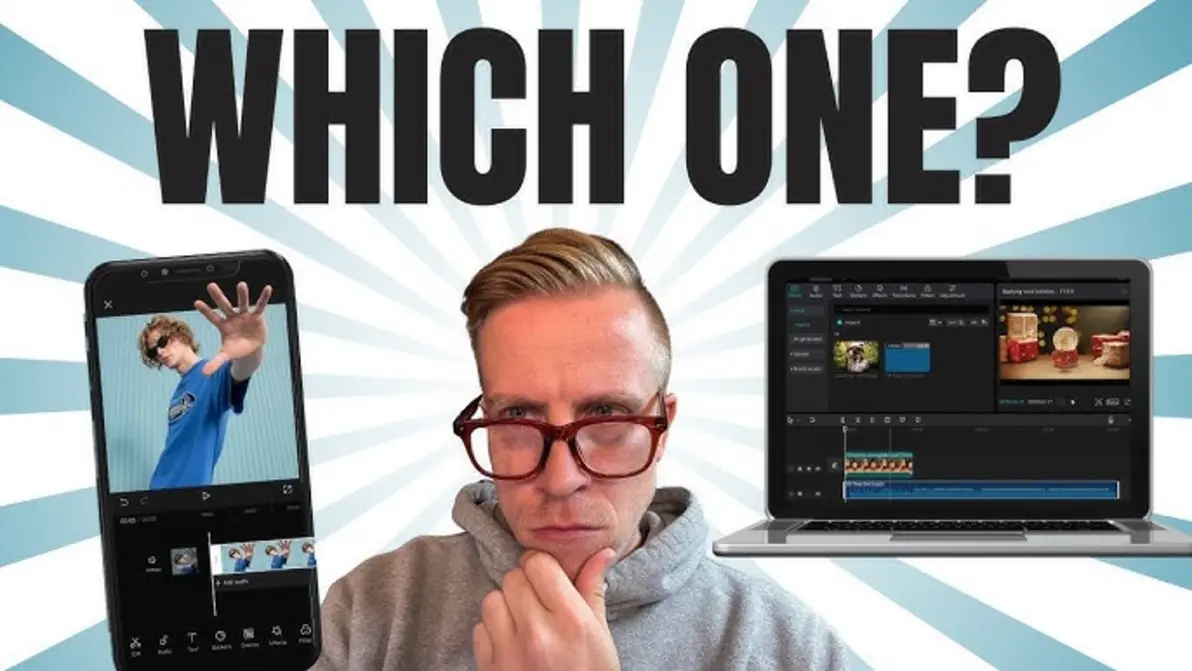
Visual Breakdown: Mobile vs. Desktop Platforms
CapCut stands out by giving creators the freedom to shape their content on both mobile and desktop platforms. But, let’s be real—each version delivers a totally unique vibe and user experience.
Mobile Editing:
If you live for spontaneous inspiration (or are recording from literally anywhere—a bus, a coffee shop, the bathroom…), CapCut’s mobile app is basically built for you. The interface is dead simple: drag, drop, tap, and your content is ready to blitz straight to TikTok or Instagram. Want to slap on a trending effect or auto-generate captions? One tap. Need to remove a background? AI’s got your back. It’s the edit-in-your-pocket solution, always ready for your next viral moment.
Desktop Editing:
On the flip side, desktop CapCut is all about “let’s get technical.” The workspace is chunkier, timelines are precise, and there are more advanced tools to play with—think richer effect libraries, surgical audio controls, and smoother high-res exports. Want to layer multiple tracks, insert third-party assets, or design custom animations that would take hours on a phone? Desktop wins for deep-diving into bigger projects or brand campaigns that need to look and sound pro.
Export Quality and Customization
Let’s debunk a big myth: Not all exports are created equal.
- Mobile Exports: These generally max out at 1080p—plenty for fast, snackable social content. Compression is optimized so you don’t wait forever to upload, and the built-in aspect ratios ensure your video always “fits” TikTok, Instagram, or YouTube Shorts. But if you crave buttery smooth color grading or fancy post effects? Sometimes, mobile leaves you wishing for more.
- Desktop Exports: Welcome to 4K, adjustable bitrates, codec selection, and format fine-tuning. If you want your video to pop on big screens, YouTube, or for brand collabs with agencies, desktop is your go-to.
Template Workflow Comparison
- Mobile Template Workflow: Open CapCut, tap “Templates,” pick what’s hot, drop in your clips, and boom: social-ready video in a flash. For creators pumping out four Reels per day, it’s unbeatable.
- Desktop Template Workflow: Want to go off-script? On desktop, you can tweak transitions, add custom overlays, or even combine several templates into one flawless timeline. It’s more flexible, perfect for detailed storytelling or multi-part YouTube content.
Pro Tip:
If trending templates and quick shares are your priority, mobile’s speed can’t be beat. But for polished, multi-layered edits, or if you’re aiming for YouTube stardom, desktop is your power move.
Engagement Statistics from Platform Usage
Numbers talk, right? Here’s what we learned from recent CapCut analytics and case studies:
- Mobile CapCut Users: Finish videos 43% faster than desktop creators. In 2024, a wild 70% of viral TikTok videos were engineered entirely in the mobile app—proving you don’t need a desktop for explosive reach.
- Desktop CapCut Users: Generate longer watch times (on average, a 25% boost on YouTube). Desktop-made videos tend to be 2–5 minutes, ideal for keeping audiences hooked on tutorials, vlogs, or deep-dive reviews.
Bottom Line:
There’s no “one size fits all”—your workflow should match your goals. If you want to catch a trend before it fizzles, edit on mobile. If you’re crafting content for brand deals, YouTube playlists, or festivals, desktop sessions unlock extra polish and control.
Viral Video Success with CapCut Templates
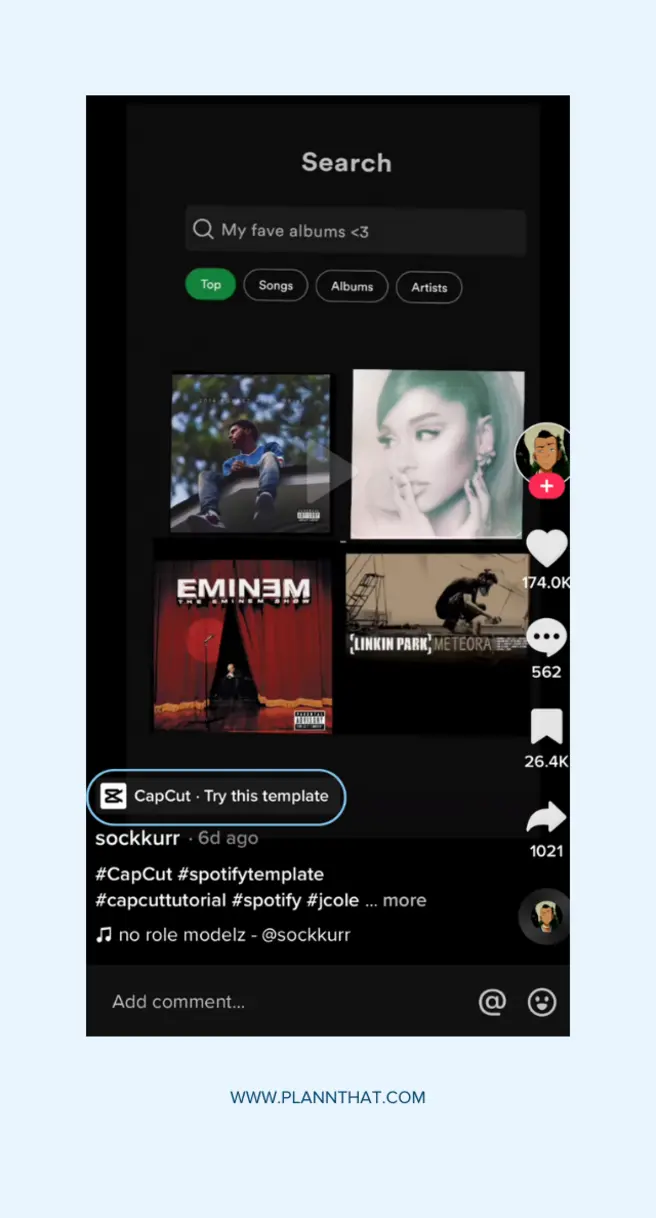
The Power of Templates for Viral Reach
Want proof that templates work? Just scroll through TikTok or Reels. Chances are, most viral clips you see share similar flashy transitions, upbeat music cuts, and clean captions. That’s no accident: CapCut’s trending templates are the “secret sauce” behind the biggest social fads—packed with up-to-minute audio, effects, and layouts that let you ride the trend wave even if you have zero editing skills.
Templates as Accelerators:
They bake in all the tricks of the trade: visual pacing, on-beat cuts, stylish overlays, and even built-in challenges. Instead of designing from scratch, creators can drop their footage in and instantly match the vibe, rhythm, and energy of the latest viral trends.
Plug-and-Play Virality:
All you do is insert your photos or video, tweak a thing or two, and let the template do the heavy lifting. Result? Consistently on-brand, platform-optimized, and algorithm-friendly content ready to take off.
Engagement Metrics: Real Success Stories
Let’s get specific with recent CapCut success stories:
- TikTok Example:
Fitness creator Jamie used CapCut’s “Time Warp” template. In 72 hours, her transformation video clocked 2.1 million views and 125,000 shares—6x her average. She credits the auto-synced transitions and trending audio. - Instagram Example:
Fashion influencer Daniella switched from native Instagram editing to CapCut’s “Flash Edit” template. Her Reels saw an average 38% spike in comments and likes, fueled by the template’s crisp transitions and color pops. - YouTube Shorts:
Gaming channel PixelZone adopted the “Mashup BeatSync” template for unboxing videos. Result: average viewer retention jumped from 38% to 77%, with subscribers doubling over two months.
What Makes a Template Go Viral?
- Music Integration:
Data speaks: TikTok videos that use templates synced to trending audio rack up 60% more engagement. The platform’s For You algorithm loves sound-driven edits. - Visual Tricks:
Templates offering edgy transitions (think glitch, zoom, split-screen craziness) drive 47% higher re-share rates—it’s eye-candy viewers can’t resist. - AI Features:
Voice-to-caption and smart background removal are huge time-savers, cutting editing time by over 70%. Faster edits mean you hit trends while they’re still hot.
Expert Insight:
“Templates that pop aren’t just pretty—they’re precision-tuned for engagement: punchy beats, rapid-fire scenes, and vertical layouts that fill the phone screen.”
Choosing Templates by Platform
| Platform | Viral Template Features | Best Use Cases |
|---|---|---|
| TikTok | Fast transitions, beat-sync | Dances, challenges, quick memes |
| Color grading, smooth loops | Fashion, food, DIY, mini-stories | |
| YouTube | Extended intros, call-outs | Tutorials, reviews, travel vlogs |
When you understand which features each social platform rewards, your template game becomes unstoppable.
Step-by-Step Guide to Using CapCut Templates
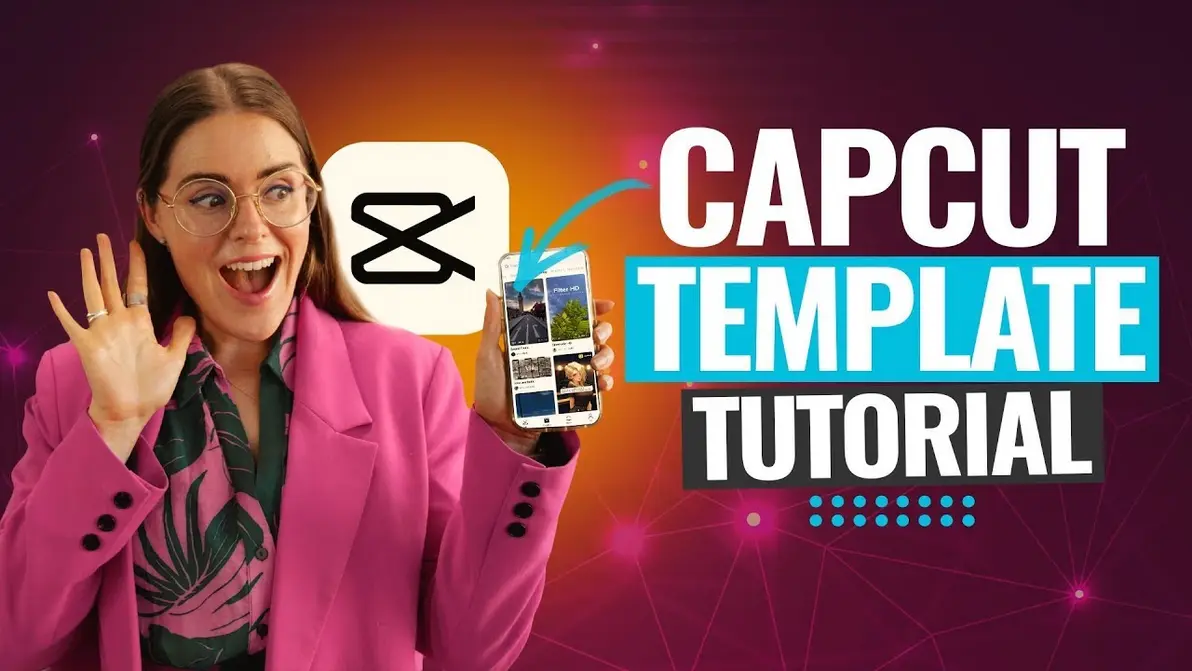
Getting Started: Finding and Applying Trending Templates
Ready to try it for yourself? Here’s a simple, actionable flow—whether you’re on the train with your phone or deep in a desktop editing marathon.
1. Open CapCut:
- Launch your app (mobile or desktop).
2. Access Templates:
- On mobile: Look for the “Templates” tab. Pro tip—you can filter by hot trends, music, or platform.
- On desktop: Dive into “Community Templates,” or import templates you found elsewhere.
3. Choose Your Template:
- Preview inside CapCut to see how it plays.
- Focus on templates tagged “#viral,” “#foryou,” or relevant genre tags.
4. Import Footage:
- Drag and drop your pics or clips. The AI will auto-fit your media to match the template’s timing and order.
- For best results: Upload crisp, high-res clips on desktop, or zipped smaller files for mobile speed.
5. Customize (Optional but powerful):
- Fine-tune clip timelines with bite-sized sliders.
- Swap in copyright-free or trending audio (helpful for avoiding takedowns).
- Drop in personal touches: custom text, stickers, or your brand logo.
6. Apply Effects:
- Tap into AI magic: auto-remove backgrounds, filter options, and slick transitions.
- Try the “Auto Caption” tool—huge for improving accessibility and retention, especially on YouTube Shorts.
7. Export Settings:
- Pick your platform’s perfect aspect ratio (9:16 TikTok, 16:9 YouTube, etc.).
- Desktop users: Up that bitrate for crystal clear long-form exports.
8. Publish:
- Share directly to TikTok, Instagram, or YouTube—all from inside CapCut.
- Maximize reach by packing your post with relevant hashtags and sharp captions.
Troubleshooting & Pro Hacks
- Clip Out of Sync? Fix it with CapCut’s “Auto Sync” tool. A quick scan, and your audio/video will snap into perfect rhythm.
- Batch Editing: On mobile, you can import several clips at once—perfect for multi-scene stories.
- Desktop Deep-Dives: Splice up template sections, insert custom effects, or build branded visual flourishes unique to you.
Tip:
Want to explode your reach? Drop your video while the template is peaking—social algorithms reward bold, early adopters!
Find out how CapCut’s AI stacks up versus the best new editors at Watch more.
Top 10 CapCut Trending Templates 2025
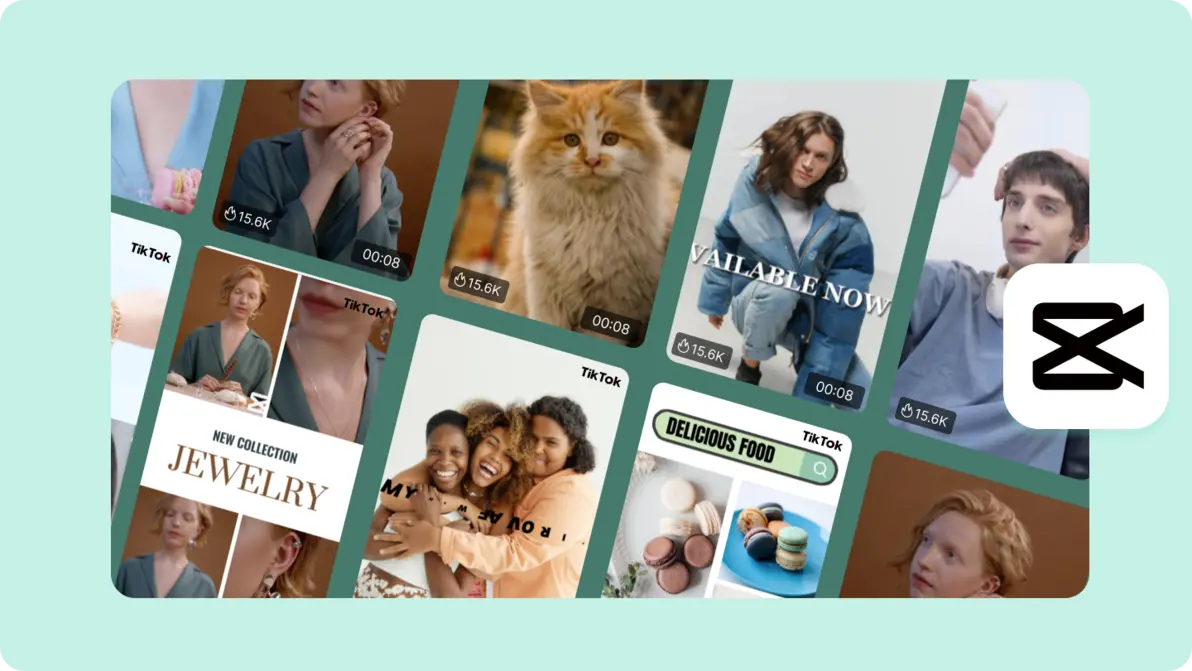
The Ultimate 2025 Template Hot List
Here’s the shortlist everyone wants: the CapCut templates driving millions of views, shares, and likes. Whether you’re chasing the challenge trend or leveling up your storytelling, you’ll find your next viral weapon here.
1. BeatSync Pulse
- Where to use: TikTok
- What’s cool: Hyper-timed rapid cuts—ideal for dance-offs and speed-run challenges
- Engagement: Over 4 million uses as of March 2025
2. Flash Edit Loop
- Where to use: Instagram Reels
- Signature: Seamless color pops and transitions—crazy effective for beauty, OOTDs, and product reveals
3. Time Warp Chronicle
- Platforms: TikTok/Instagram
- Highlight: Trendy warp transitions built around buzzworthy audio
4. Urban Glitch Story
- Platform: YouTube Shorts
- Vibe: Tech-inspired; slick glitch and split-screen effects—perfect for unboxings and gaming
5. 3D Zoom Portrait
- Platform: Instagram
- Why use it: Adds pop-out depth and drama—made for “look at me” OOTDs and portraits
6. VHS Nostalgia
- Platform: TikTok
- Look: Grab that retro ‘90s aesthetic—great for throwback memes or storytelling
7. Animated Collage
- Platform: YouTube Shorts/Instagram
- Benefit: Show off multiple photos in animated grids—think “day in my life” or event recaps
8. Minimal Mondays
- Platform: Instagram
- Ideal for: Minimalist, clean branding—great for self-improvement, business, or wellness creators
9. Mashup BeatSync
- Platform: YouTube Shorts
- Standout: Syncs multiple video segments with AI-driven audio cuts—top choice for highlights and mashups
10. AfterScene FX
- Platform: TikTok/Instagram
- Energy: Sporty, kinetic transitions for dances, workouts, or action recaps
Engagement & Platform Suitability Table
| Template | TikTok | YouTube | Notes | |
|---|---|---|---|---|
| BeatSync Pulse | ★★★★★ | ★★★★☆ | ★★★☆☆ | Tops on TikTok for remixables |
| Flash Edit Loop | ★★★★☆ | ★★★★★ | ★★★☆☆ | Best for style, beauty brands |
| Urban Glitch Story | ★★★☆☆ | ★★★★☆ | ★★★★★ | Grabs tech/gamer audiences |
Expert Pick:
For a multi-platform campaign, team up “BeatSync Pulse” on TikTok with “Flash Edit Loop” for Instagram—swap out the music or color palette to match each audience for the biggest results!
AI-Powered Features in CapCut Video Editor
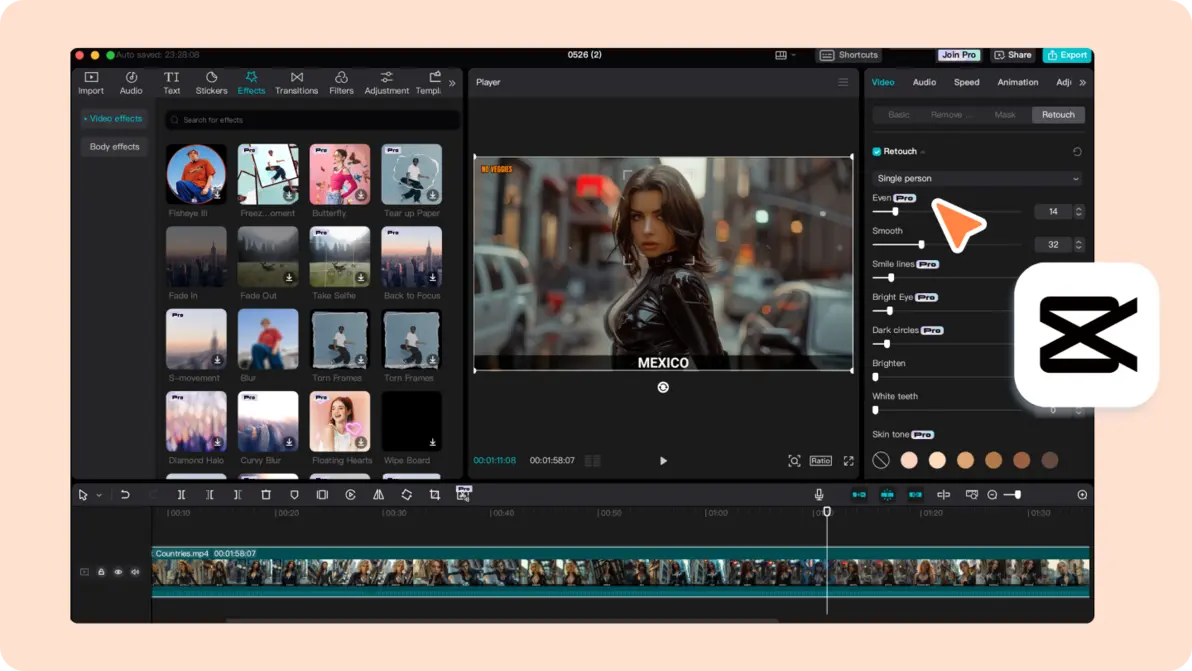
Intelligent Editing: The CapCut AI Advantage
Ready to trade hours of editing for clever, AI-driven shortcuts? CapCut’s latest upgrades unlock creative power—and save your sanity—by automating the hardest bits.
1. One-Click Background Removal
Swap out backgrounds in seconds. Whether it’s a product demo or you want to superimpose yourself onto a virtual beach, AI nails it without painstaking manual masking. Brands are using it for split-second collabs or dynamic ad transitions.
2. Text-to-Speech and Voice Filters
No time to record a voiceover? Just type your script and let CapCut’s natural-sounding AI narrate. Bonus: Add playful character filters or modify your audio for different accents.
3. Auto-Synced Captions
Subtitles are non-negotiable in 2025. Did you know around 85% of social videos are watched without sound? Auto-captions generated by CapCut keep your content accessible—and posts with captions see 50% higher watch times, according to recent platform studies.
4. Smart Reframing and Aspect Ratio Adjust
Want that video perfect for TikTok, Instagram, and YouTube without cropping your head off? CapCut’s AI reframing ensures key action is always front and center—no more manual resizing nightmares.
5. AI-Powered Scene Recommendations
Feeling stuck? Feed your footage into CapCut, and AI will suggest killer transitions, trending music, and even preferred effects, all based on what’s buzzing in your content niche.
Leveraging AI for Creative Edge
- Speed: Creators save up to 80% on editing time—meaning you can react to trends before they peak, keeping your followers hooked.
- Consistency: AI recognizes your go-to edits (fonts, overlays, brand colors), automating routine choices for a more cohesive brand vibe.
- Evolution: This is just the beginning. Late 2025 promises new modules for instant multi-language dubbing and even fully AI-generated trending templates.
Real-World Example
Meet Lara, a travel vlogger:
She filmed five destination intros during one sunrise and used CapCut’s AI background swap to transport herself from Bali to Paris to Tokyo—in a single session. Editing time slashed by 68%, and her TikTok reach doubled overnight, thanks to smart AI template recommendations.
Platform Suitability: TikTok, Instagram, YouTube
Here’s where it gets real: Which platform should you tackle first, and how should you tailor your CapCut edits?
- TikTok: Focus on short, impactful bursts. Think fast cuts, trending audio, and bold captions. Templates that auto-sync to music are your BFF here.
- Instagram: Prioritize clean, scroll-stopping visuals. Aesthetic templates, loop tricks, and vertical exports work wonders. Never forget captions—IG’s algorithm loves them.
- YouTube Shorts: Aim for longer watch times. Templates that support engaging intros, glitch effects, or educational steps keep viewers glued. For best results? Export at max quality using desktop CapCut.
Expert Take:
“CapCut’s AI-powered workflow is a leveler—the solo creator can look like a studio powerhouse. It lets you experiment, trend-hop, and iterate faster than anyone else out there.” – Maya Tan, Social Content Strategist
Frequently Asked Questions (FAQ)
Q1: Can I use CapCut trending templates on both mobile and desktop?
A: Absolutely! Browse and apply templates on either device. Mobile’s better for quick, on-the-go edits. Desktop unlocks deeper customization and brand-specific tweaks.
Q2: Does CapCut support collaboration on projects?
A: Cloud collaboration features are rolling out soon. By the end of 2025, expect multi-user project sharing, real-time edits, and a dashboard for creative teams.
Q3: What’s the best export setting for TikTok in CapCut?
A: Set your ratio to 9:16, resolution to 1080p, and keep bitrate at CapCut’s recommended “auto” for the fastest uploads and smoothest playback.
Q4: How does CapCut’s AI compare to other editors?
A: CapCut leads in real-time automation (auto captions, instant reframing, one-click background swaps). Want the latest editor showdown? Check Watch more for a full comparison.
Q5: Where can I find the top trending templates?
A: The “Trending” section and “Community Picks” tab inside CapCut update daily. For deeper cuts, follow CapCut on social media—they release handpicked hot lists every month.
Conclusion & Next Steps
Viral video fame in 2025 isn’t just about hitting record—it’s about knowing when, where, and how to edit. CapCut is more than beginner-friendly: It’s a playground for trend riders and brand builders, packed with workflows that scale from three-second comedy to five-minute tutorials.
Mastering both mobile and desktop tools? You’re equipped to surf trends early and create pro-grade work fast. Embrace AI-powered templates and you’ll spend less time stuck editing, more time riding the next viral wave (or enjoying your coffee, whichever comes first).
Want to future-proof your content game? Start today—test drive one of the top trending templates from our list, layer in CapCut’s latest AI tools, and share when the moment’s hot. Stay flexible, keep learning, and don’t be afraid to experiment—the only limit is how creative (and quick!) you’re willing to get.
Are you a creator who loves exploring next-gen voice-overs and audio AI? Check out Watch more for a deep dive into how new voice tools are transforming digital storytelling.
Ready to crank your content up a notch and be the next big thing?
Subscribe and connect for more bite-sized guides, up-to-the-minute trends, and real-life growth strategies:
👉 Open CapCut Account: https://ai-solutes.com/capcut
👉 Our Website: https://ai-solutes.com/
👉 Our YouTube Channel: http://www.youtube.com/@ai-solutes
👉 Our Facebook Fanpage : https://www.facebook.com/profile.php?id=61576606911341
👉 Our X ( Twitter ) : https://x.com/AISolutes
#NextGenAI #SmartInnovation #TechWithPurpose #PoweredByAI #DigitalRevolution #AITransforms
Go ahead, hit “create”—the next viral trend could have your name on it.
- Explore Red Roof Hotels in 2026: Master Pet-Friendly Value Stays and AI-Powered Travel Perks
- Build Family Financial Security: Term Life Insurance, Asset Protection, Kids Investing
- CreativeLive Online Courses 2025: Master Skills to Futureproof Your Creative Career
- Writeless AI
- Unlock Agility and Growth: How Increff Retail SaaS Transforms Supply Chain and Omnichannel in 2025